

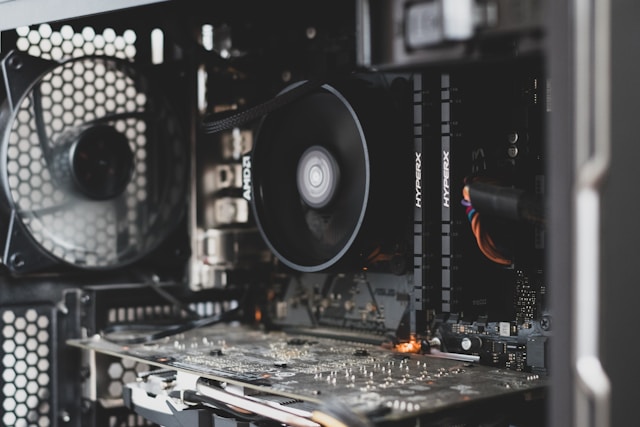

Computer overheating is a common problem that can affect performance, stability, and the lifespan of your device. When a computer becomes too hot, it may slow down, freeze, shut down unexpectedly, or even damage important hardware components.
Understanding why overheating happens and how to prevent it can help keep your computer running safely and efficiently.
Why does a computer overheat?
There are several common reasons why a computer may reach high temperatures:
- Dust buildup inside the device
- Poor airflow or blocked ventilation
- Old or dried thermal paste
- Heavy use of the processor or graphics card
- Problems with cooling fans
- Running too many demanding applications
When the cooling system cannot remove enough heat, the temperature of the components increases.
Dust as a common cause
Dust is one of the most frequent causes of overheating.
Over time, dust can collect inside the computer and block air circulation. This prevents fans and cooling systems from working properly.
Regular cleaning can help maintain proper airflow and reduce the risk of overheating.
Problems with thermal paste
Thermal paste helps transfer heat from the processor to the cooling system. Over time, this paste can dry out and become less effective.
Signs of a thermal paste problem include:
- Higher temperatures
- Fans running constantly
- Performance drops
- Unexpected shutdowns
Replacing old thermal paste can improve cooling performance.
Poor airflow and ventilation
A computer needs proper airflow to remove heat.
Problems can occur when:
- Ventilation openings are blocked
- The laptop is used on soft surfaces
- The computer is placed in a closed space
- Cooling fans cannot move air properly
Keeping the device on a hard, flat surface can help improve airflow.
Heavy workload
Demanding tasks increase heat production.
Examples include:
- Gaming
- Video editing
- 3D design
- Running multiple applications
- Using intensive software
During heavy use, the processor and graphics card work harder, producing more heat.
Fan problems
Cooling fans are responsible for moving hot air away from internal components.
If a fan is damaged, slow, or filled with dust, temperatures can rise quickly.
A faulty fan may cause:
- Loud noises
- Increased heat
- System slowdowns
- Sudden shutdowns
How to prevent overheating
To keep your computer cooler:
- Clean dust regularly
- Keep ventilation areas open
- Avoid blocking airflow
- Update system software
- Monitor temperatures
- Replace thermal paste when needed
- Avoid excessive workloads for long periods
For laptops, using a cooling pad can also help improve airflow.
How to reduce temperature
If your computer is already overheating, you can:
- Close unnecessary programs
- Restart the device
- Clean the cooling system
- Check fan operation
- Reduce demanding tasks
- Improve ventilation
If overheating continues, professional inspection may be needed.
Conclusion
Computer overheating is usually caused by cooling problems, dust, heavy workloads, or aging components. Addressing the issue early can prevent performance problems and expensive hardware damage.
With proper maintenance and good usage habits, your computer can stay cooler, faster, and more reliable for longer.