

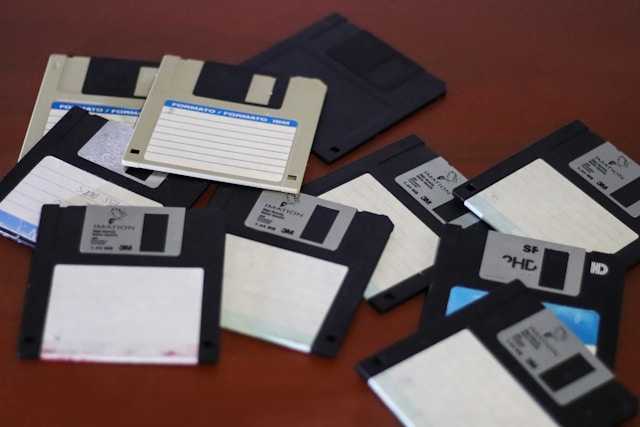

Backing up your files is one of the most important steps you can take to protect your personal and business data. Computers can fail, files can be accidentally deleted, and security threats can cause data loss.
A proper backup strategy ensures that important documents, photos, projects, and other files can be recovered when needed.
What is a backup?
A backup is a copy of your files stored in another location. If something happens to your main device, the backup allows you to restore your data.
A backup can protect you from:
- Hardware failure
- Accidental deletion
- Malware and ransomware
- Theft or loss of a device
- System problems
What files should you back up?
Important files usually include:
- Documents
- Photos and videos
- Work files
- Financial records
- Password recovery information
- Important personal data
Not every file needs a backup, but anything that would be difficult or impossible to replace should be protected.
External drives and storage devices
One common backup method is using an external storage device.
Examples include:
- External hard drives
- SSD drives
- USB storage devices
Advantages:
- Easy to use
- Fast file transfers
- Works without internet access
However, external devices should be stored safely because they can also be damaged, lost, or stolen.
Cloud storage backups
Cloud storage allows you to save files online and access them from different devices.
Benefits include:
- Access from anywhere
- Automatic synchronization
- Protection from local hardware failure
Cloud backups are commonly used for both personal and business data.
The 3-2-1 backup strategy
A reliable backup method is the 3-2-1 rule:
- Keep 3 copies of your data
- Store them on 2 different types of media
- Keep 1 copy in a different location
For example:
- Original files on your computer
- Backup on an external drive
- Backup in cloud storage
This reduces the risk of losing everything at once.
Automatic backups
Automatic backups are useful because they happen without requiring constant manual action.
They can:
- Run on a schedule
- Save updated files regularly
- Reduce the chance of forgetting backups
For important files, automatic backup is usually safer than relying only on manual copies.
Backup before a computer repair
Before repairing or resetting a computer, always create a backup.
Repairs, system resets, and upgrades may sometimes affect stored files.
A backup protects your:
- Documents
- Photos
- Work data
- Personal files
How often should you back up?
The frequency depends on how often your files change.
Examples:
- Daily backups for important work files
- Weekly backups for personal files
- Occasional backups for rarely used data
The more important the information, the more frequently it should be backed up.
What makes a good backup?
A good backup should be:
- Recent
- Easy to restore
- Stored safely
- Tested regularly
A backup that cannot be restored when needed is not useful.
Conclusion
Backing up your files is a simple habit that can prevent major problems. Whether you use external drives, cloud storage, or a combination of methods, having a reliable backup plan protects your important information.
Regular backups provide security, peace of mind, and the ability to recover quickly from unexpected issues.